
Do More With Apps
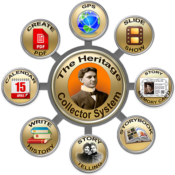
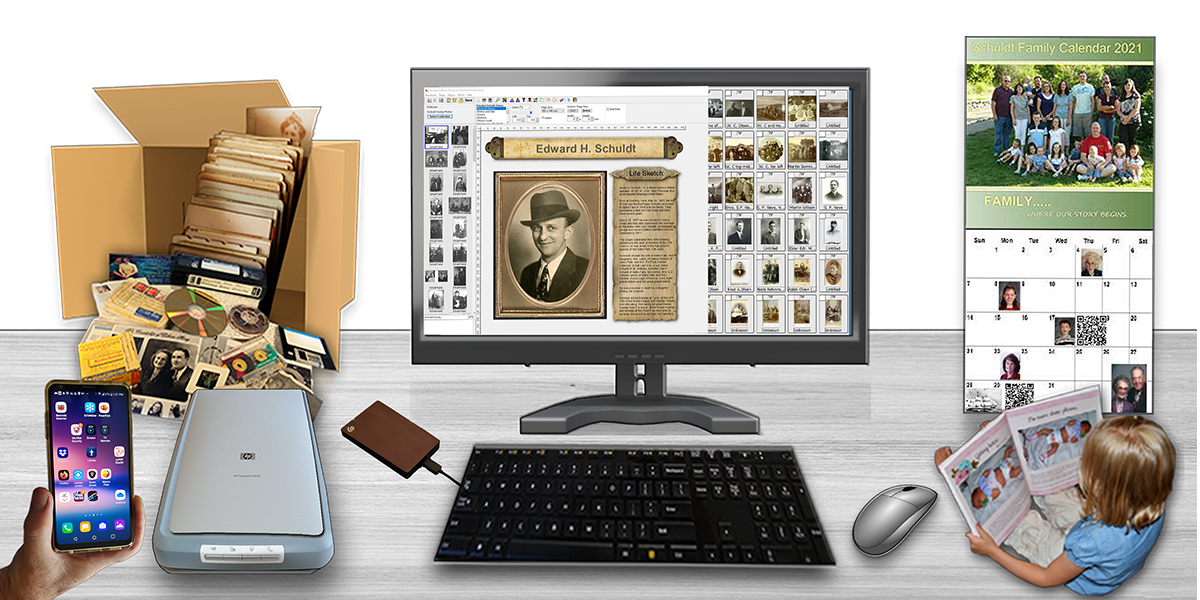
- Includes full featured Apps.
- Create and share PDF’s.
- GPS tag and search.
- Share with others.
- Install on external drive.
Make Learning Easier

- Step-by-step Guides.
- Free How To Videos.
- Interactive Documentation.
- Computer jargon not used.
- Get help as you work.
- Print sections for reference.
NEW – Free Webinars Help You Learn How to do More
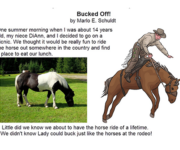
Learn how to write and share short stories using the new Storybook Layers app. Fun stories will be shared to give you some ideas about stories you might start writing. A step-by-step PDF tutorial will be available to download during the webinar. This free webinar will be recorded so if you can’t come on June 15th, signup so you can watch it another time.
Create and Share Short Stories on Memory Cards
Wednesday, June 17, 2026
7:00 – 8:00 pm MST
An interactive PDF will available for download during the webinar.
- Learn how to write and share short stories using the new Storybook Layers app.
- Fun stories will be shared to give you some ideas about stories you might start writing.
- A step-by-step PDF tutorial will be available to download during the webinar.
- This free webinar will be recorded so if you can’t come on June 15th, signup so you can watch it another time.
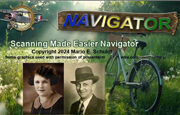
Easier Scanning Get Outstanding Results
Tuesday, June 23, 2026
7:00 – 8:00 pm MST
An interactive PDF will available for download during the webinar.
- Why a scanner is better to use than a phone.
- Use optimal scanning dimensions.
- How to crop an image.
- Understanding Dots Per Inch settings. One size does not fit all.
- The right image file type to use.
- Saving as a JPG may result in image loss..
- Settings to use when scanning newspaper and printed material.
- Simple techniques to revive old, faded and discolored photos.
- Tips for organizing all your scans.
- Using scans in books, calendars, storybooks and other media.
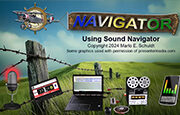
Capture, Enhance and Use Sound in New Ways
Tuesday, June 30, 2026
7:00 – 8:00 pm MST
An interactive PDF will available for download during the webinar.
- How to get started recording.
- Which microphone to use.
- Recording with a smartphone.
- Using a script file makes it easier.
- Surviving, laughing at and making the best of Your ‘BLOOPERS.’
- Recommended equipment and software.
- How a photo can tell it’s own story using sound.
- Simple slide show with narrative.
- Converting old tapes and CD/DVDs.
- Enhancing recordings.
- A talking Calendar and storybook pages.
- Why add sound to old home movies?
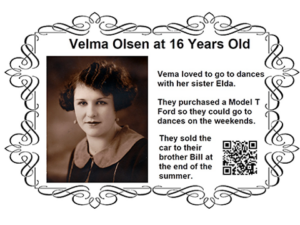
- Access recordings with a QR Code.
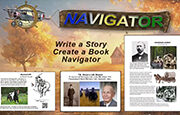
Easy Ways to Starte to Write and Share Your History
Tuesday, July 7, 2026
7:00 – 8:00 pm MST
An interactive PDF will available for download during the webinar.
- Start writing random short stories.
- Help you get started writing stories is the easiest possible way.
- Offer sample story samples and templates to provide ideas.
- Provide summarized step-by-step instructions.
- Present “How To” videos that “show” how a process works
- Supply links to solutions to help you continue working.
- Suggest different ways to share a story or write a history.
- Guide you through a logical sequence of steps.
- Demonstrate how to start simple while working toward a book.
- Divide and conquer by working with together with others.